
Course Overview & Syllabus
Course Overview & Syllabus
Saving Quiz Attempts
If you're working on a quiz and would like to stop for whatever reason, you can save your quiz attempt and return to it later. Maybe you'd like to review some of the course materials to help you answer one of the questions. Or, maybe you just need to quit for the night and return to it the next day.
To save your quiz in progress do the following:
Scroll to the bottom of the quiz page and click the Finish Attempt button
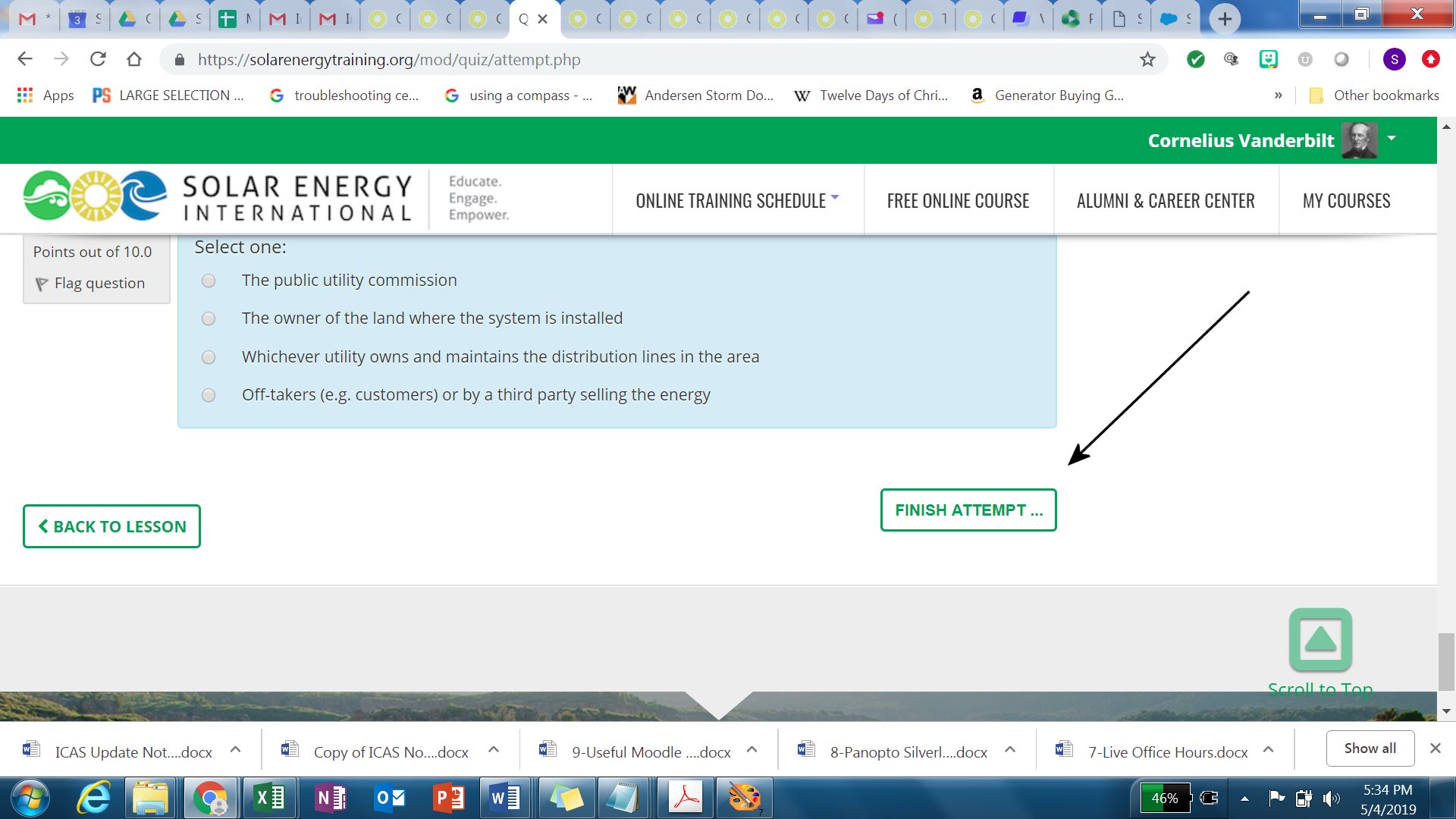
Your attempt is then saved and a screen appears showing you the state of your saved quiz attempt. The Quiz Navigation block shows which questions you have selected an answer for and which questions you have not yet answered. The Summary of Attempt area shows similar information.
(Note: the Finish Attempt link shown here on this screen doesn't actually do anything)
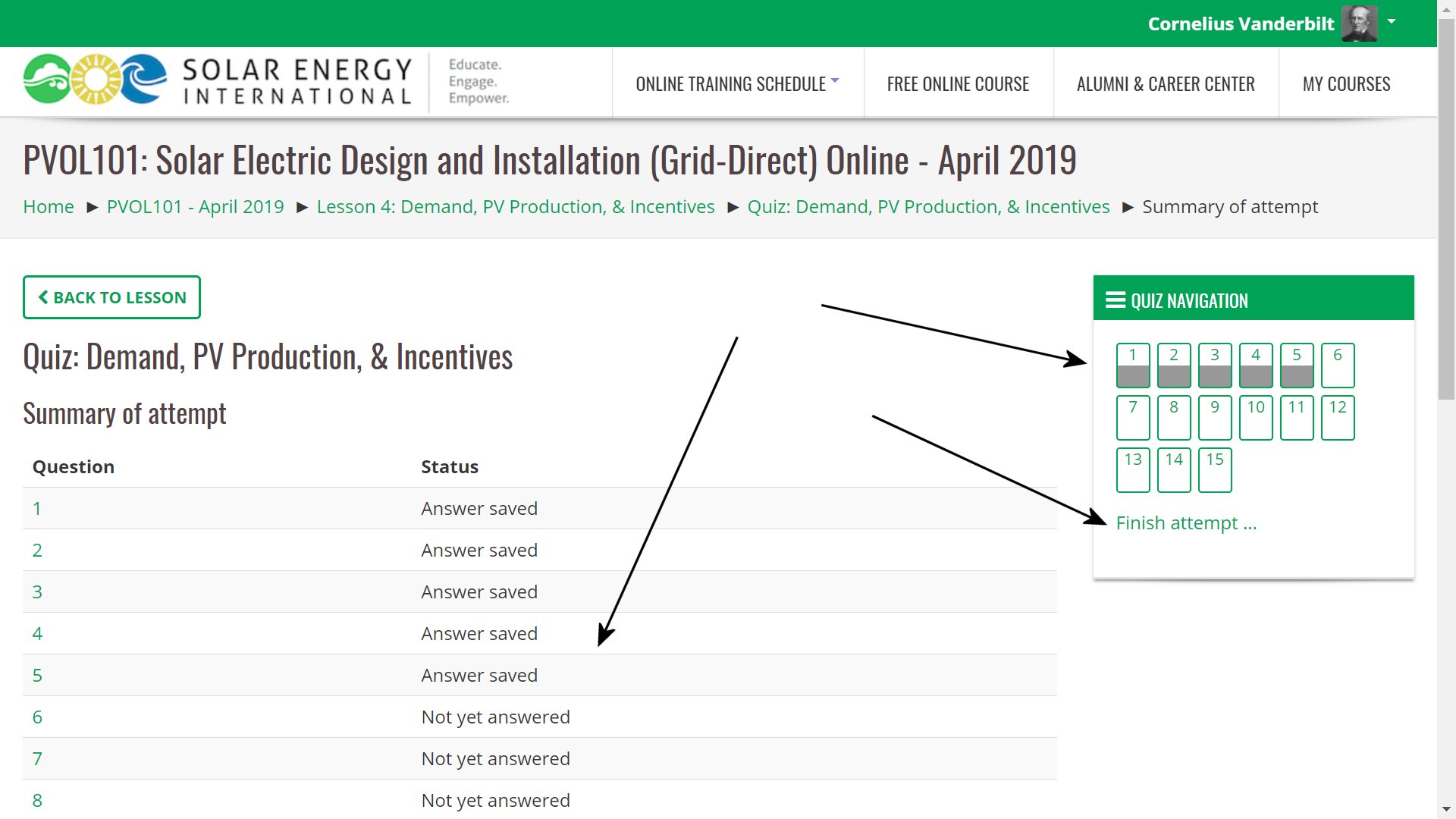
At this point you can navigate away from this quiz, and even log out of the course.
When you return the next day and are ready to resume your saved quiz attempt you can simply return to the lesson with the quiz, click the quiz link, and you will see the following screen. We can see the quiz has an In progress attempt. Click the Continue the Last Attempt button to resume the quiz attempt.

When you are ready to submit the quiz for a grade, use the Submit All and Finish button at the bottom of the Quiz Attempt Summary page.
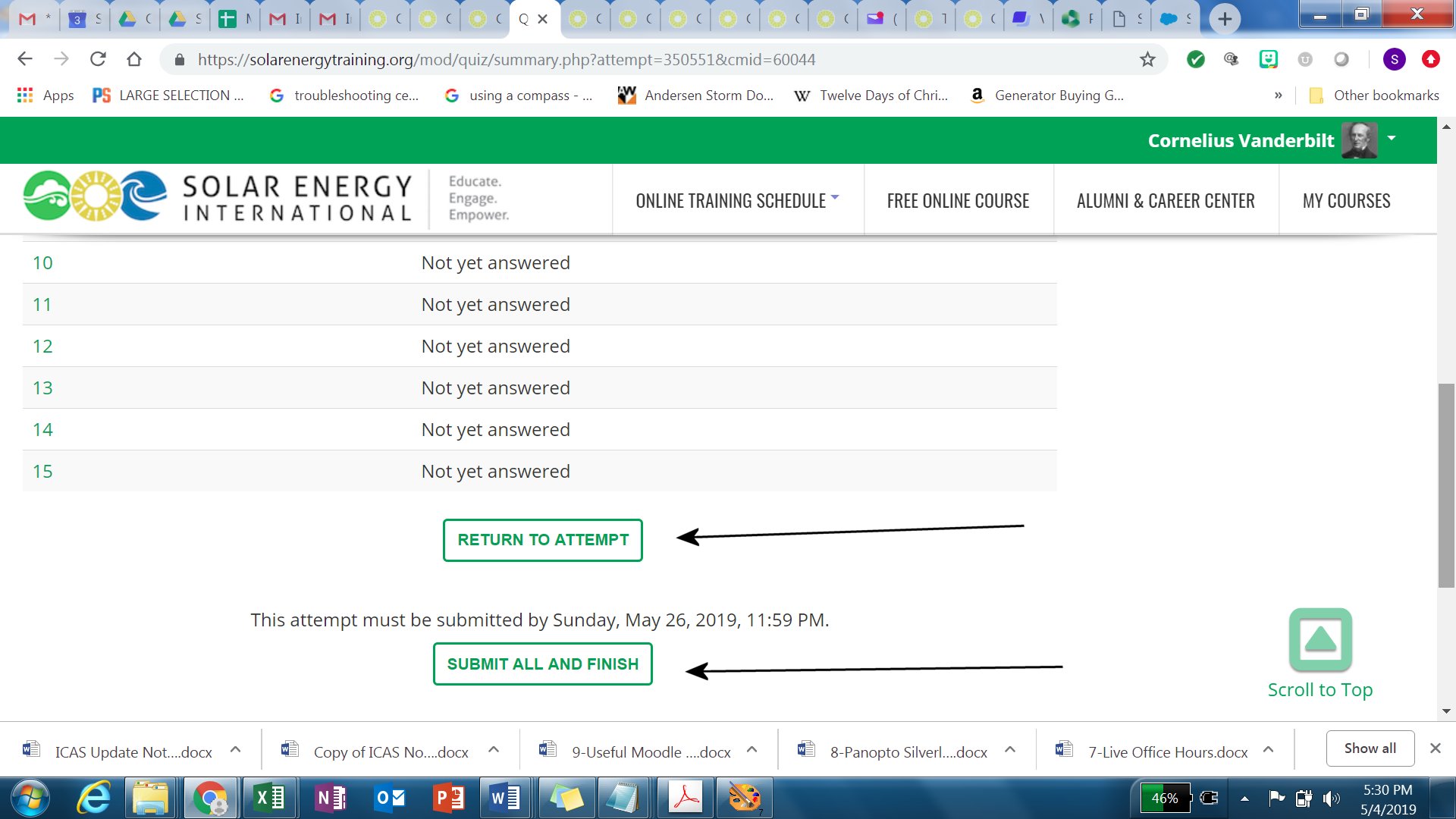
The following confirmation screen will appear. Click the Submit All and Finish button to complete your quiz submission.

You can view the results of each quiz, along with your cumulative course progress using the Grades link in the Course Progress menu.
For information on how you can review, print and save your completed quizzes see Saving Your Course Work.