
Course Overview & Syllabus
Course Overview & Syllabus
Submitting Your Assignments
Follow these steps to browse your computer and upload the files for your assignment submissions:
On the main assignment page click the "Add Submission" button.

In the File Submissions dialogue box on the page that appears click the "Add" button (indicated by the arrow in the screen shot below)

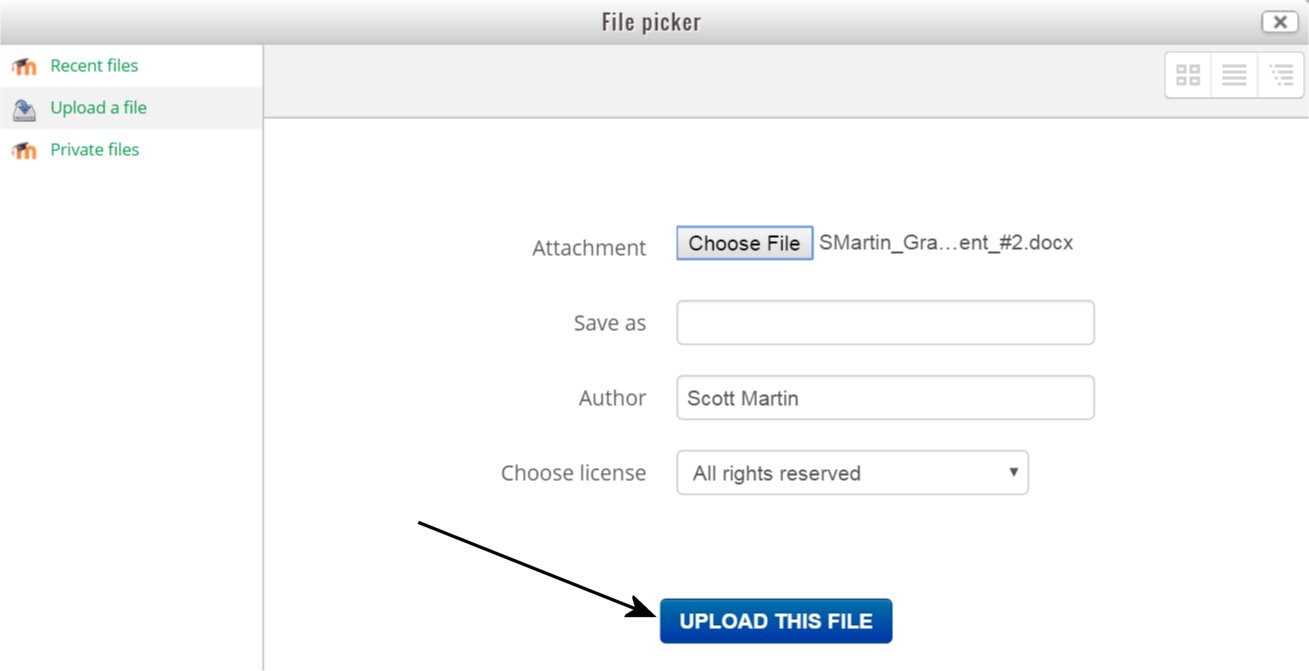
Click the "Choose File" button in the File Picker window that appears.

Use the Open dialogue box that appears to browse your computer for the file you want to upload and then select the file by clicking on it once. Then click the Open button.

You will then be returned to the File Picker window. Click the "Upload This File" button.
Repeat this process to browse for any other files you want to add to be uploaded.
Once all files are added to the File Submissions window click the "Save Changes" button underneath the File Submissions dialogue box.
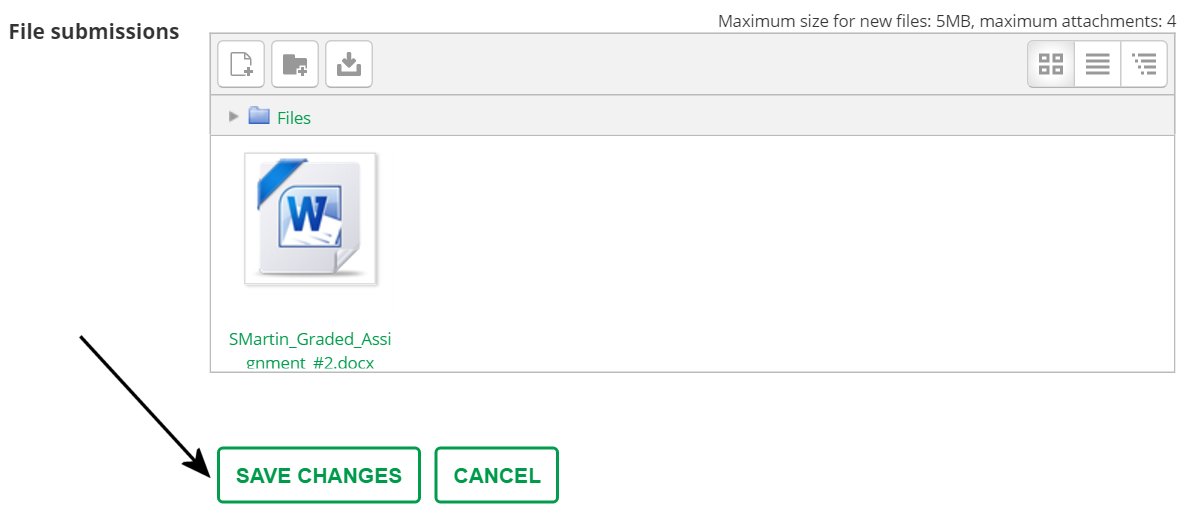
Your assignment has now been submitted to your instructors for grading.