
Course Overview & Syllabus
Course Overview & Syllabus
Saving Your Course Work
We strongly encourage you to save your course work for future reference. Your quizzes, exercises, graded assignments and other course materials, including the video presentations, can be saved to your own computer and used later as reference materials and to study for the NABCEP examinations. Your Record of Completion and NABCEP Letter which are available in the Course Wrap-up Lesson are also required when applying for NABCEP Certification, so you'll want to have a copy of those.
Since you'll only have two weeks of post-course "instructor-less" review time, we highly recommend saving/printing your work as well as other course materials as you progress through each lesson.
Here's How:
1) Make a folder on your computer for the course... PVOL101, PVOL202 etc.
2) Create the following folder structure (or similar) within the main course folder (See screenshot below)

3) Before starting each lesson systematically go through it and download each item to the appropriate folder for that lesson on your own computer. Tips on downloading and saving individual resources are below.
After completing the lesson and taking the quiz, print the quiz to a .pdf file and save it in the lesson folder on your computer. (see Saving Your Quizzes below)
4) Read through the Course Related Question forum and copy and paste any discussions of interest to you into individual word files and save them.
5) When you have completed the course be sure to download and save the digital copies of your Record of Completion and NABCEP Letter into the main course folder. These documents are available in the Course Wrap-up lesson of your course once you have satisfied all of the course requirements.
6) Burn the main course folder onto a CD or DVD or copy to a Flash Drive or external USB hard drive for backup.
Additionally you can download the podcast versions of the video presentations into a separate folder and burn these onto CD's as well. These are rather large files, thus the reason you should keep them separate. If you save these in with the rest of the course materials you won't be able to burn the main course files onto a single CD.
Many of the course materials are in Adobe Acrobat PDF format (e.g., Digital Lesson Notebooks, Worksheet Exercises, Additional Readings, Graded Assignments, Equipment Specification Sheets, etc.), which you can easily save or print provided you already have the latest version of the Adobe Acrobat Reader installed.
Once Adobe Acrobat Reader is installed, click a link to view a .pdf document in the course. When it opens in Acrobat Reader, use the Download Arrow to save the file to you computer. Click the Printer icon to print the file. It is recommended to download the file to your own computer and then you can print it any time in the future.
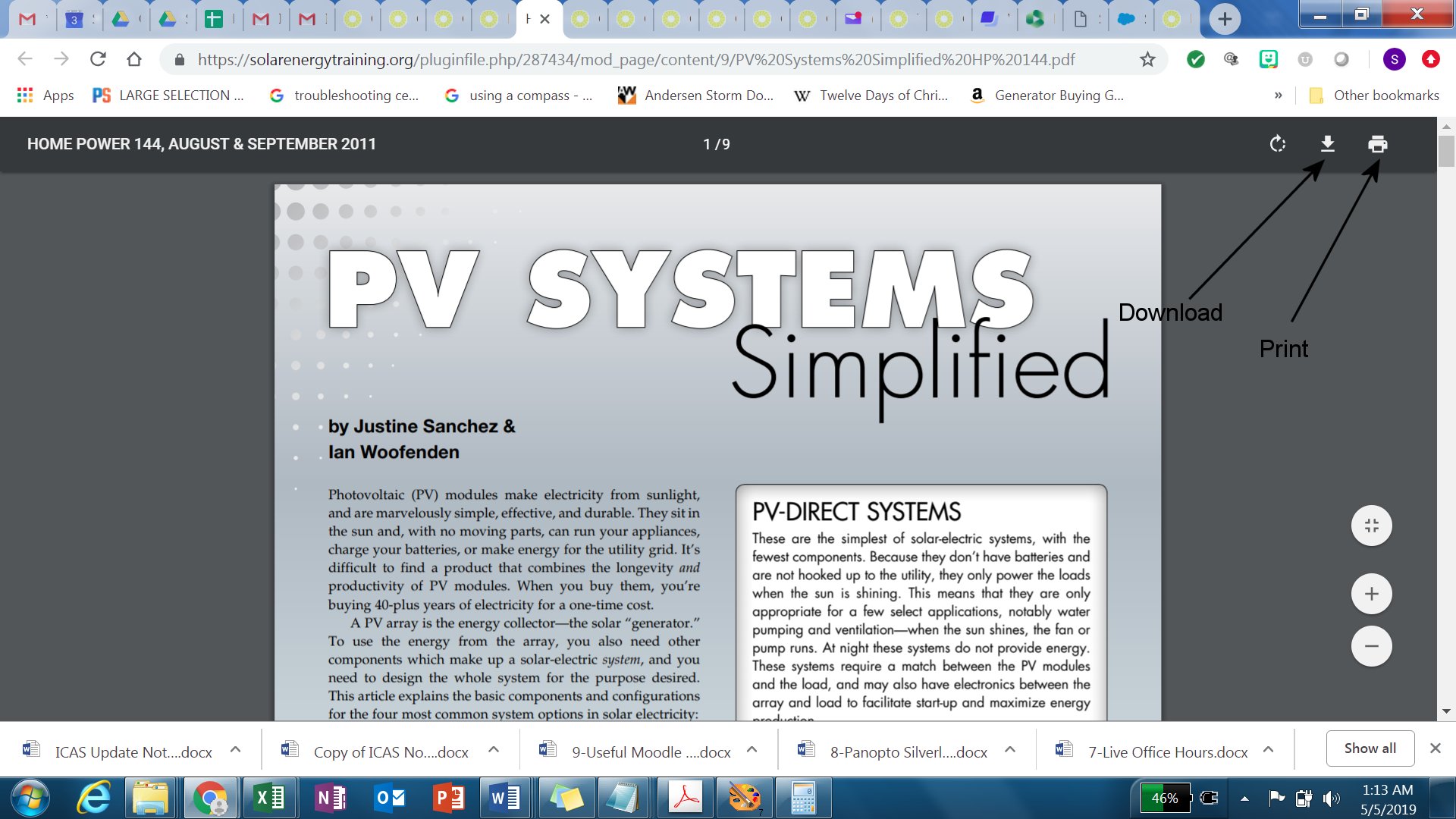
Some items are links to websites which can be bookmarked in your browser, or copied and pasted into a MS Word file and saved in the appropriate lesson folder on your computer.
Saving Your Quizzes
Saving your quizzes is somewhat browser specific. However, if the latest version of Adobe Acrobat Reader is installed it should be possible in most browsers to right click on a web page and chose "Print" which will then let you chose to Print to a .PDF file.
Here is the process using Google Chrome:
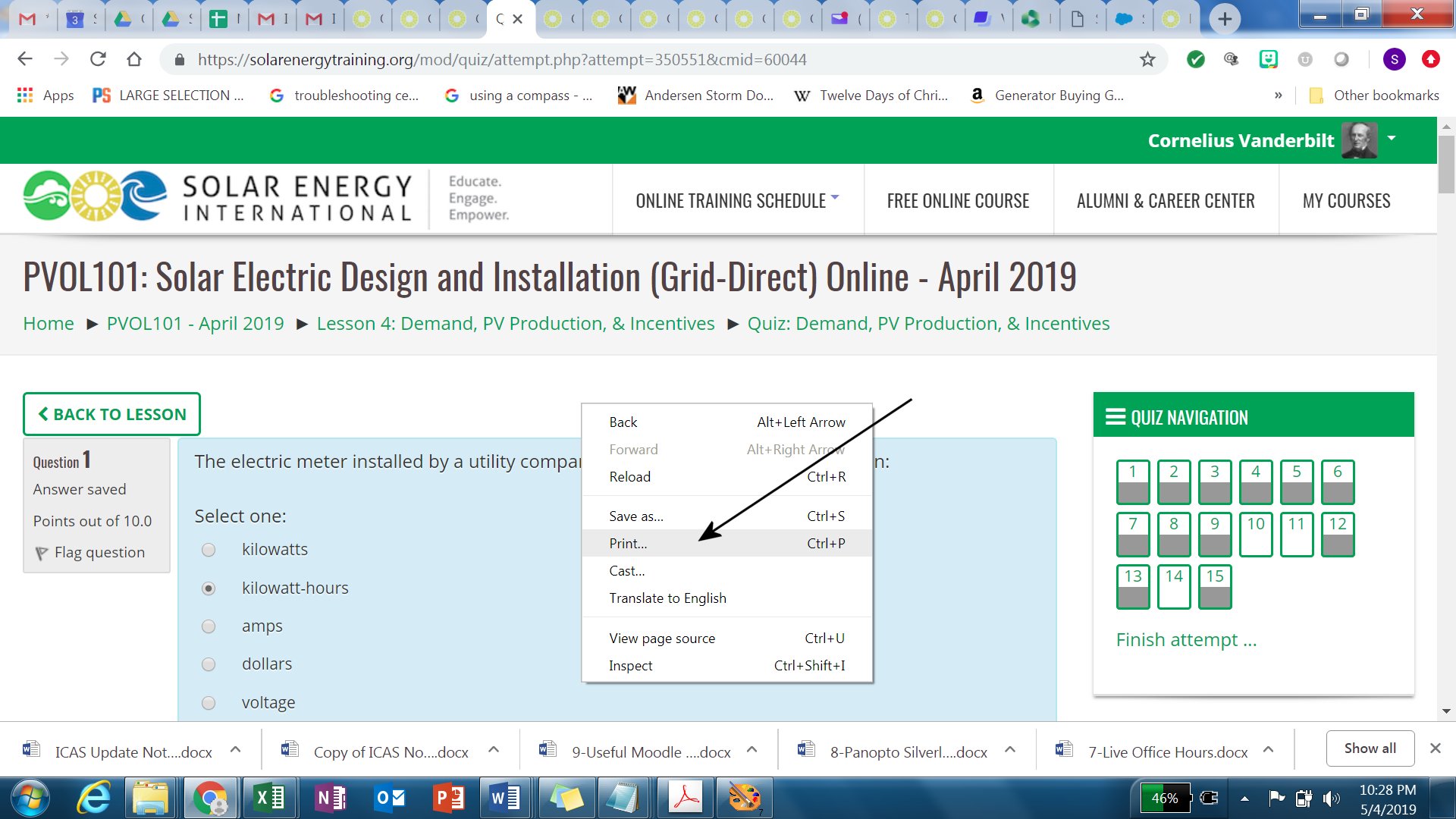
Open the Review screen of the completed quiz you wish to save. Right click on the screen and chose Print from the menu that appears.
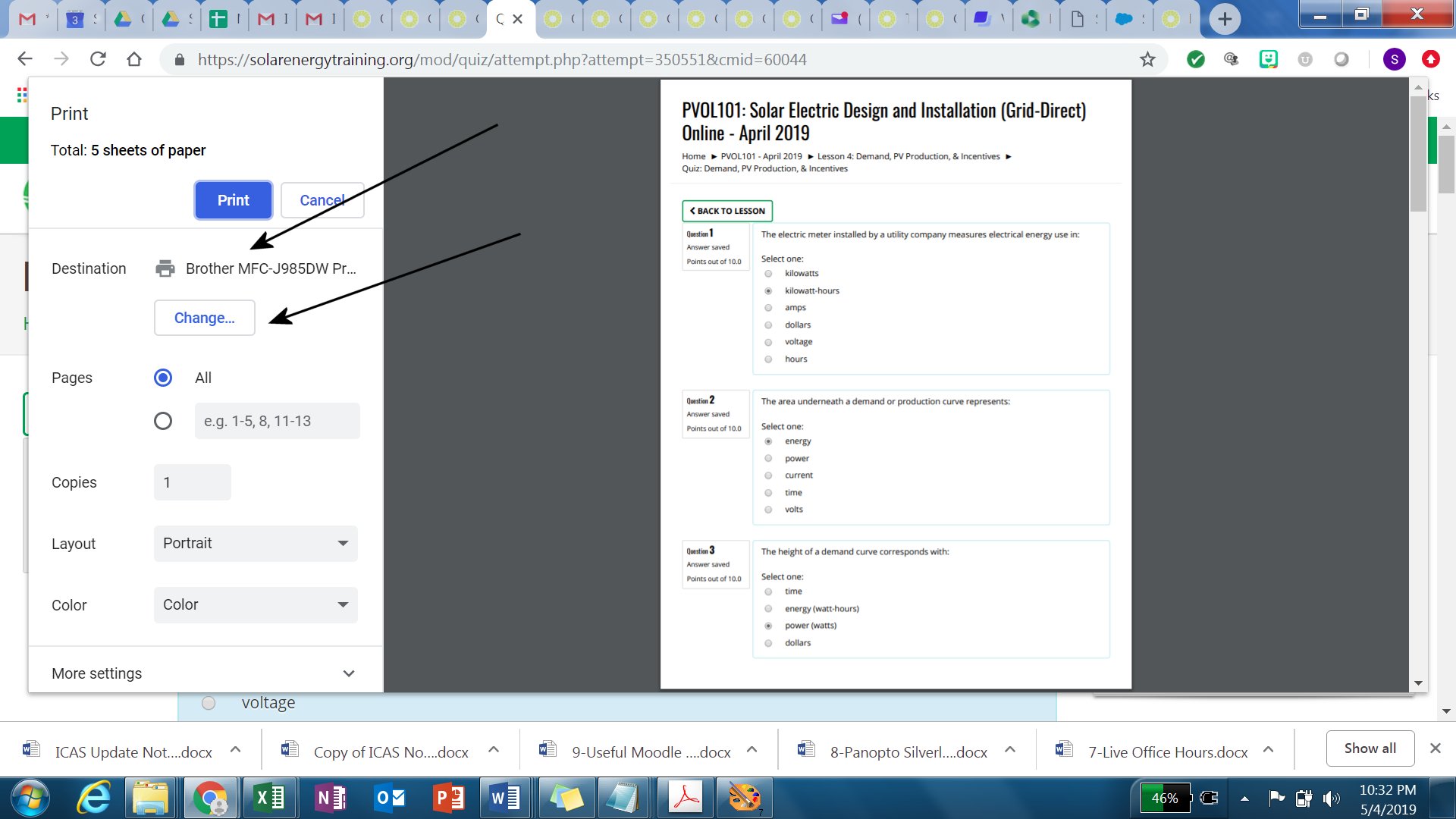
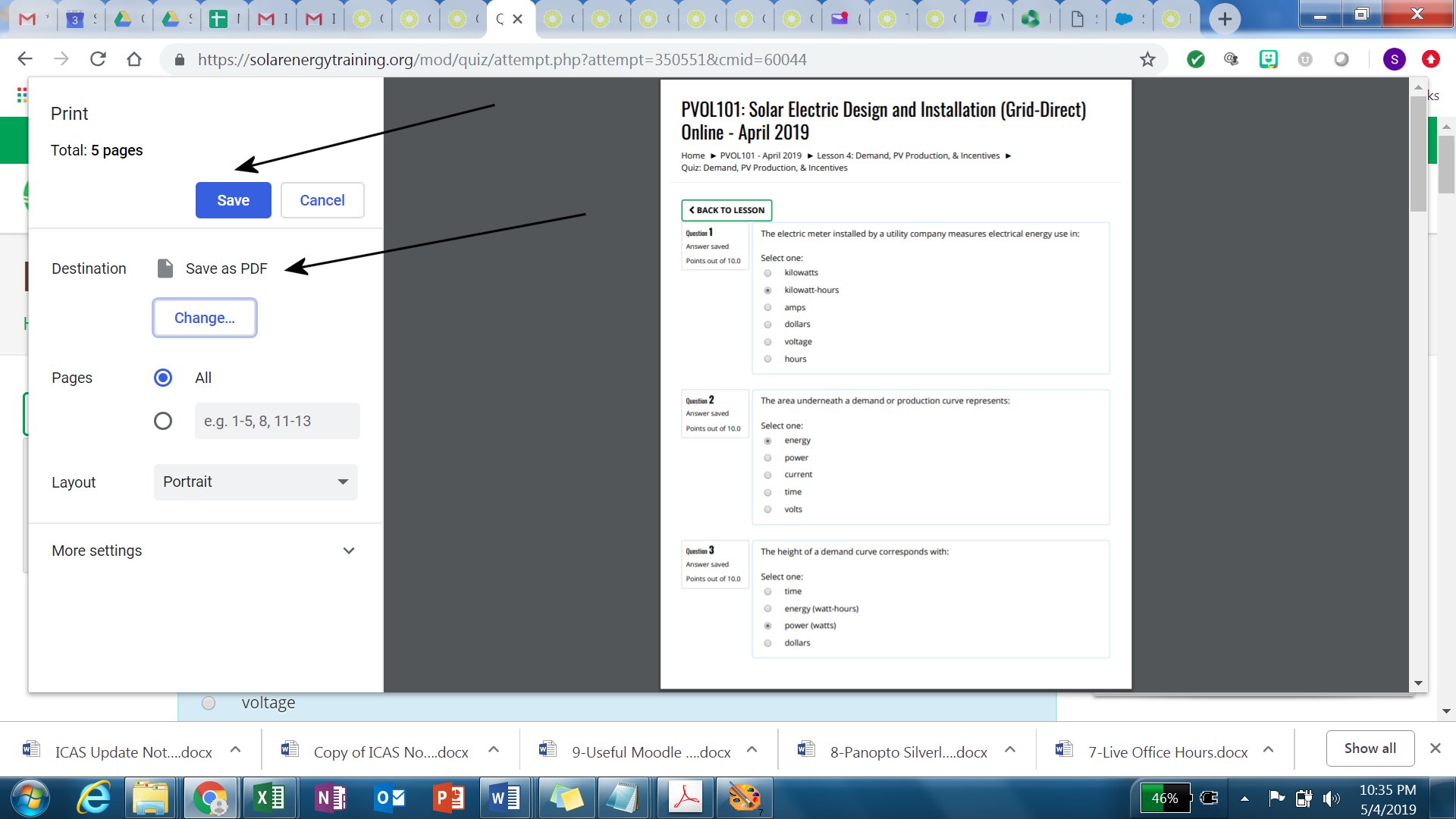
On the Print screen that appears click the Change button to select a different destination.
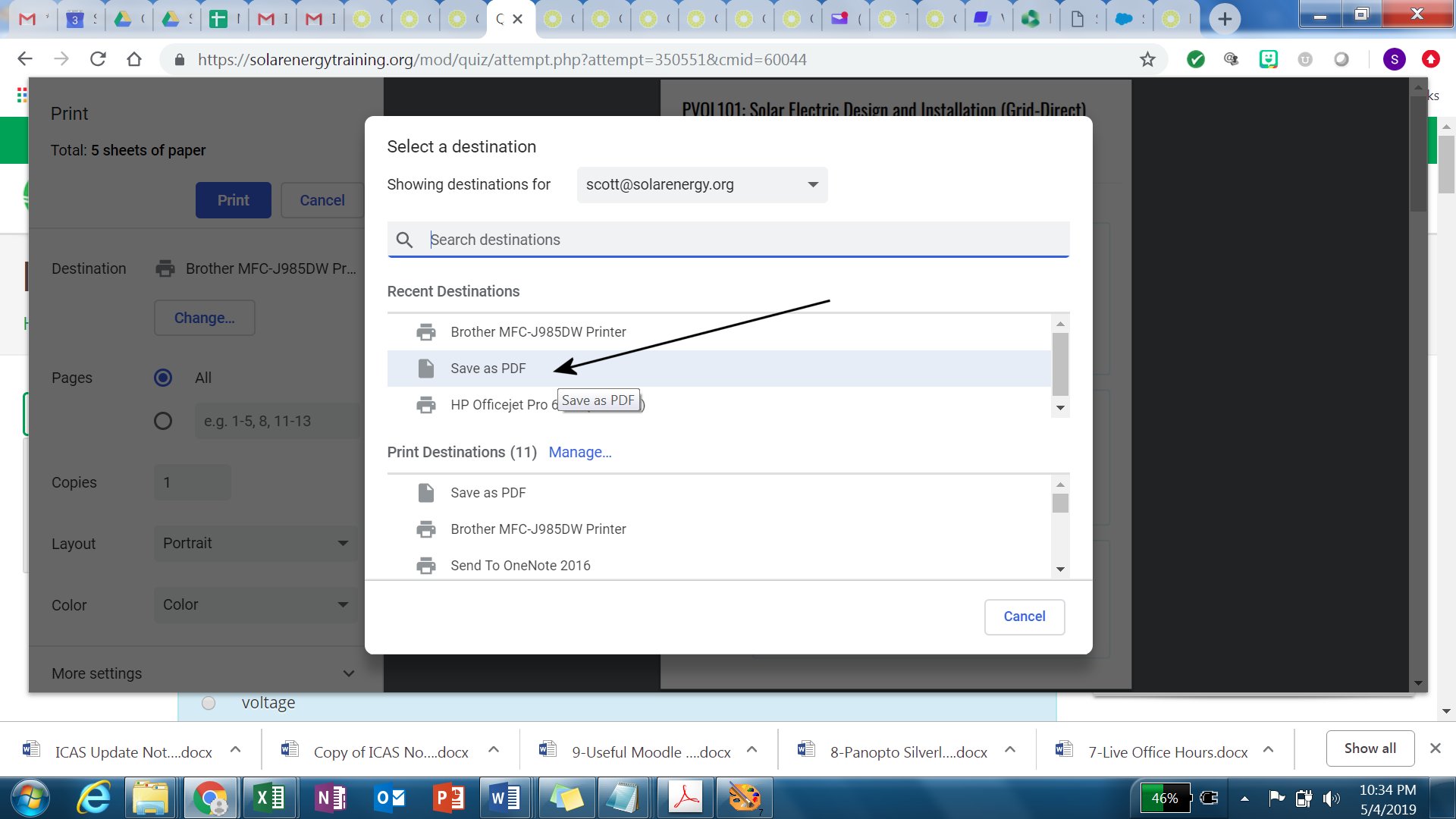
Select the Save as PDF option from the screen that appears.
The Destination is set to Save as PDF. Click the Save button.
In the Save As dialogue box that appears navigate to the lesson folder on your computer where you want to save the Quiz Attempt.
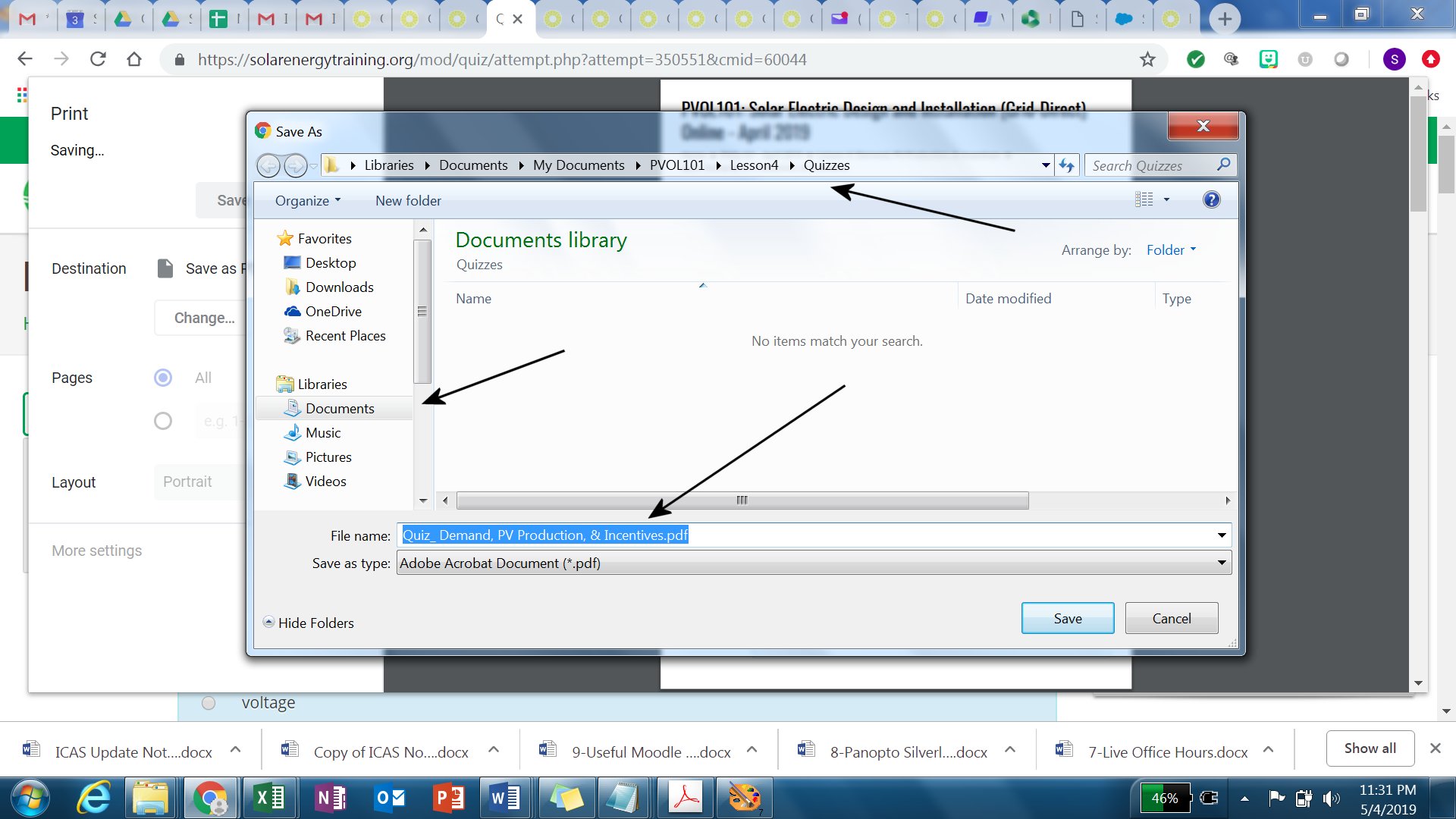
Click the Save button to save the quiz attempt as a .pdf file on your computer.
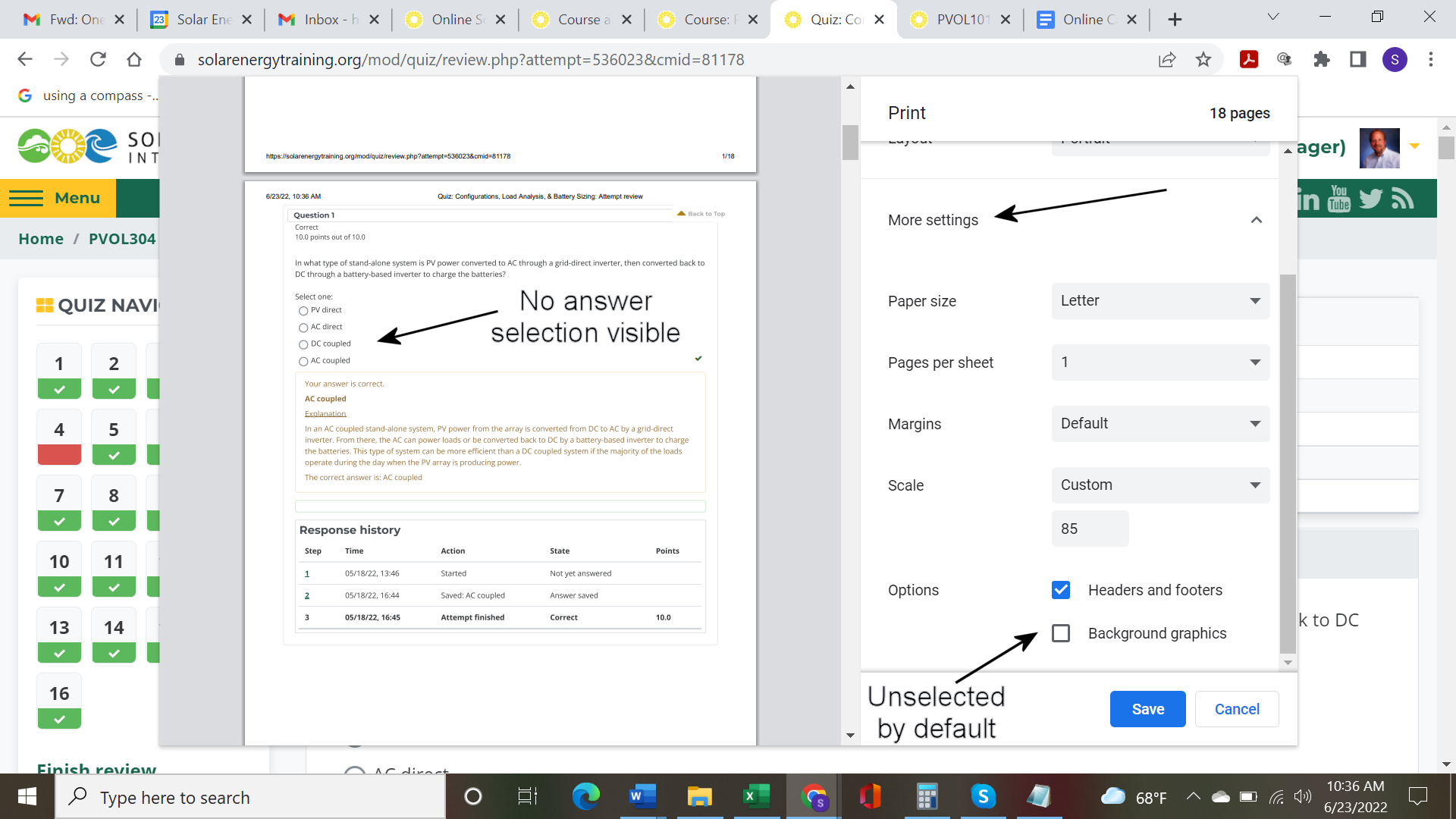
IMPORTANT NOTE: If you notice that your answer selections are not visible in the quiz when saving them with this method, look for a "more settings" link in the printing dialogue box. In these additional options you will see a selection choice for "Background graphics". Be sure that is selected. This will make your answer selections visible on the saved quiz.
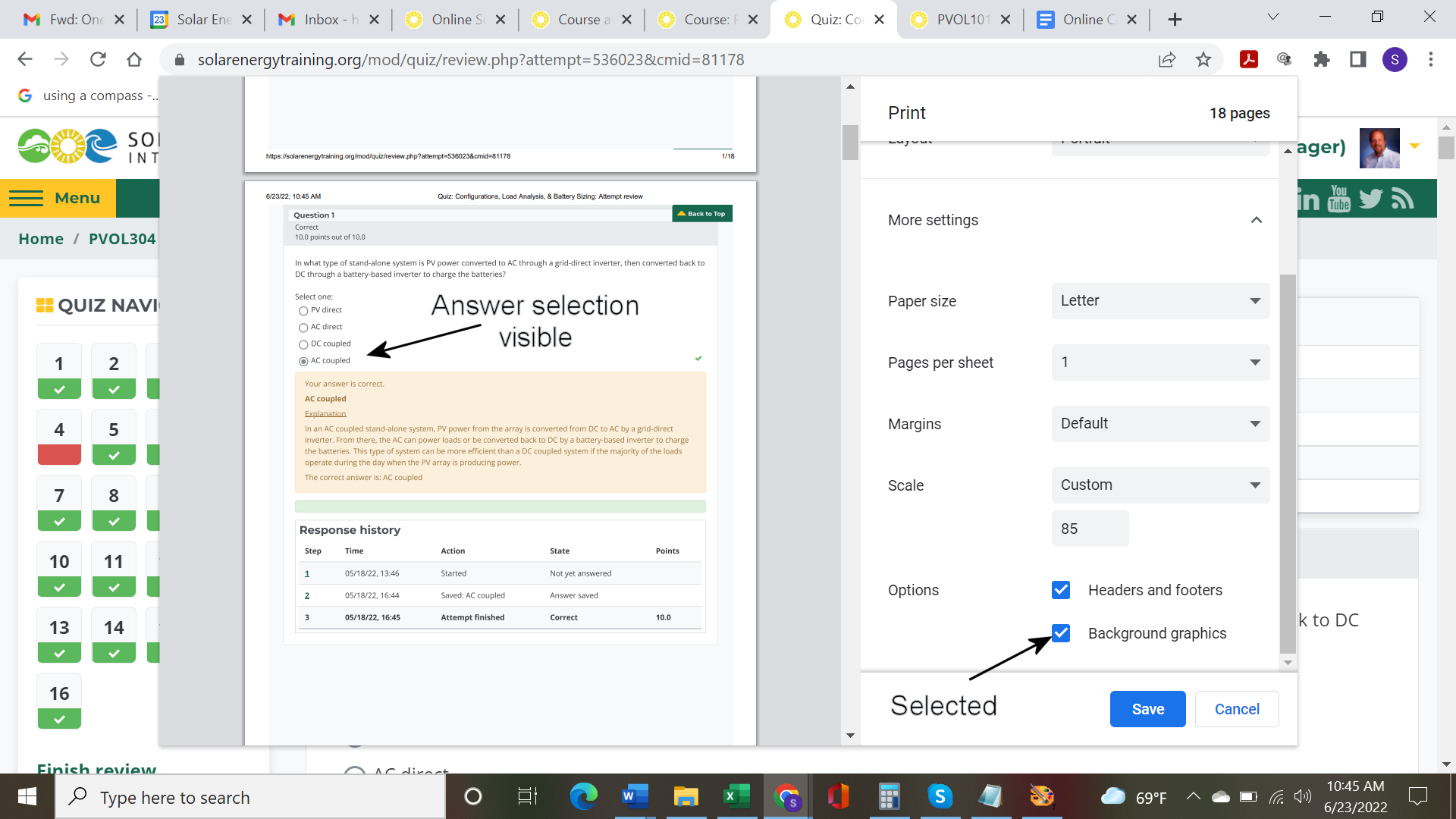
After selecting the Background graphics option your answer selections are visible.
If for some reason you do not have the option to print to a .pdf file try these general steps for saving or printing web pages using different browsers.
Saving You Work
Firefox, Safari, Chrome (Mac and PC)
Right Click (or Control- or Command-Click if using a one button mouse) on the area you want to print or save
Select This Frame (a drop down indicator appears)
Select Print Frame or Save Frame as...
Print or Save
Internet Explorer (PC)
Click on File and select Print
Select the Options tab within the print window
Select Only the Selected Frame
Print or or Save
Note: there are subtle differences among all browsers and differences based on whether using a Windows or Mac platform.
Accessing and Reviewing Graded Activities
Click the Grades link in the Course Progress menu block on the course Home Page.
Locate and click on the specific activity (e.g., Lesson 5 - Quiz 1) you want to view/save/print
Click on your linkable score in the Grade column
Follow the Saving Your Work instructions above