
Course Overview & Syllabus
Course Overview & Syllabus
Downloading the Presentations as Podcasts
All the video presentations in your course can be downloaded in the form of podcasts. The benefits of downloading them include:
- You can download them at home (or wherever is convenient for you) and then you can watch them later offline without using any data
- It's easy to watch them on any device
- You can keep them indefinitely for future reference after the course is closed
How to Download the Presentations as Podcasts (.mp4 files)
When watching a video within the course on a PC or Mac computer, simply click the Download podcast arrow in the upper right of the video player to initiate the download.
After a few seconds the Save As dialogue box will appear. Simply save the .mp4 file as you would any other file using the Save As dialogue box to navigate to the location where you want to save the video presentations, and create new folders as desired with the New folder button. Note the folder and location used in the example below.
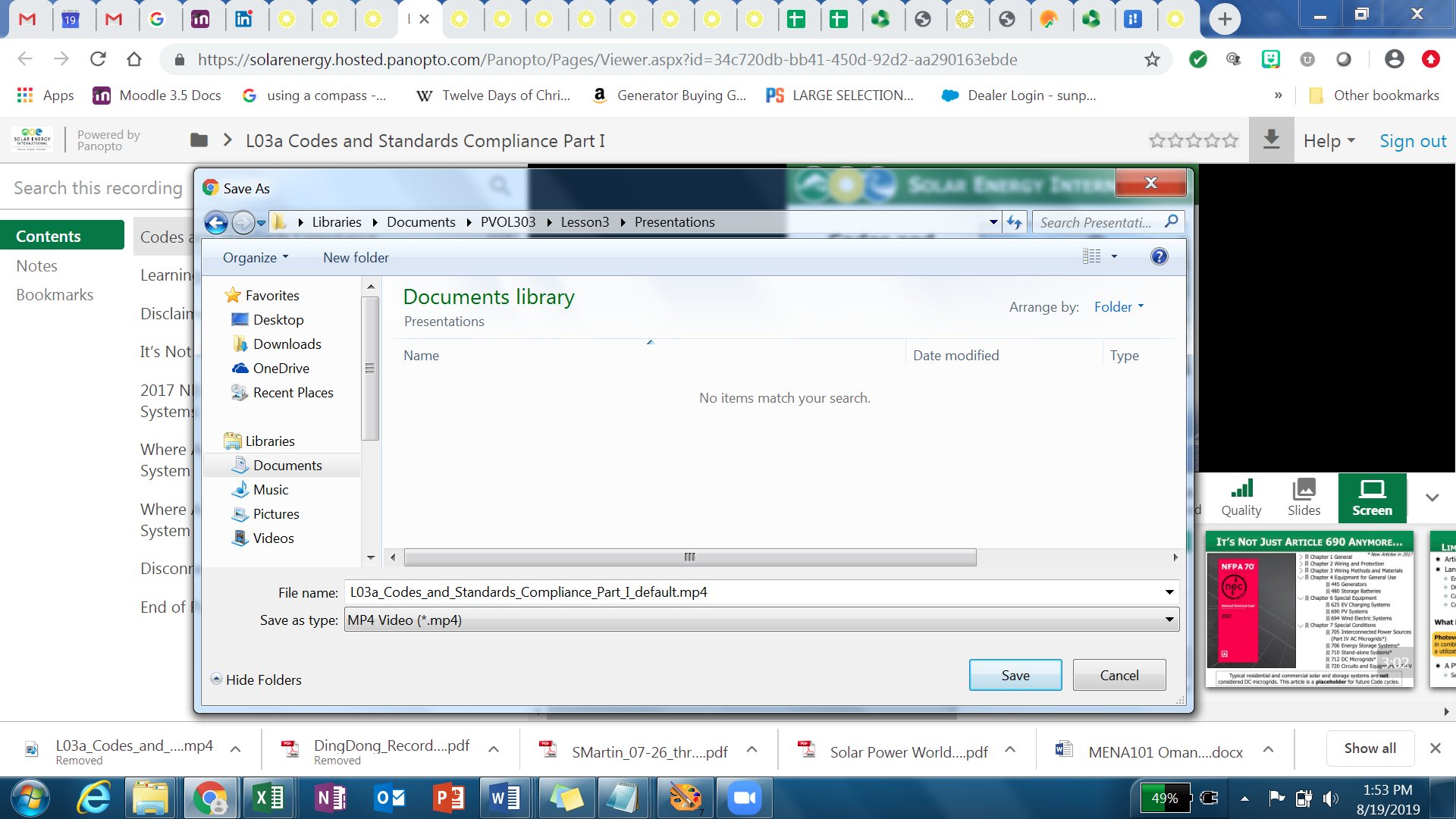
That's it! Repeat this process for each video presentation as you progress through the course, or during your two week instructor-less review period.
Once downloaded to your computer you can use your favorite video player (Media Player, iTunes, etc.) to watch them any time after the course ends. It's a good idea to backup these videos up on some type of external media like an external hard drive in case your computer breaks down or gets lost or stolen.
If you'd like the presentation podcasts on your mobile device you can use iTunes to sync the two devices so you'll have copies on both.
For more information on syncing to a mobile device see the following resources:
Apple Tech Support
Sync your iPhone, iPad, or iPod using iTunes on your computer
CNET
How to Sync iTunes with Android